QuadooScript Applications
Quadoo Studio's Application (QuadooForm) project combines QuadooScript code with visually designed Windows forms. QuadooForm supplies the native controls; Studio synchronizes the script declarations and builds an application executable containing the compiled script and its Form/Frame definitions.
Implementation reviewed October 26, 2026. Screenshots show the local Win32 implementation. Newer Application features described here require a Studio/runtime build containing them; an older download may not expose the same commands.
Available now: Form/Frame design, generated members and event declarations, native Preview, and building/running through Project > Start Without Debugging (Ctrl+F5). Application debugging and the separate Project > Compile export command remain under development.
Contents
- Create an Application project
- Source, definitions, and the application host
- Use the visual designer
- Build your first application
- TreeView: design, add, and remove nodes
- ListView: columns, rows, and removal
- Use Forms and reusable Frames
- Build and run
- Icons, resources, and optional modules
- Distribute an application
- Implementation status and troubleshooting
- Implementation references and verification
Create an Application project
Keep the matching Studio, AQVMT.bin, and runtime DLLs together. The application builder reads the template and DLLs beside QuadooStudio.exe. See the dependency list below. Using Studio to build your application does not require compiling the native C++ projects.
- Choose File > New Project.
- Select Application (QuadooForm). Use Browse to choose a project file, for example
ApplicationDemo.qsproj, in a writable project folder. Accept the dialog. - The Add Form Source dialog asks for the first form's script filename. Save it as
MainForm.quadoofor this guide. Studio creates the associatedMainForm.qform.jsonand opens Design view. - The first Form becomes the Default source and startup form. The source node's context menu offers Set Default for changing it to another Form unit. A Frame cannot be the startup form.
Canceling the first Form dialog leaves an empty Application project open. Use File > New Form to create the first Form later. Additional Forms and Frames use File > New Form and File > New Frame. File > Add Existing Form/Frame Unit first selects a definition and then its associated QuadooScript source.
The source filename's stem must be a valid QuadooScript identifier. MainForm.quadoo corresponds to class MainForm and interface IMainForm. Class names, definition paths, and unit identities must be distinct within the project. Studio does not add a C prefix.
Source, definitions, and the application host
| File or component | Role |
|---|---|
ApplicationDemo.qsproj | JSON project metadata: the application target, source files, Default Form, source/definition associations, run parameters, and optional icon/modules. Designer synchronization metadata also lives here. |
MainForm.quadoo | The script class, events interface, generated component properties, constructor, and your event-handler implementations. |
MainForm.qform.json | The Form's native definition: component types, stable GUIDs, names, layout, properties, embedded image data, and callback names. |
DetailsFrame.quadoo and DetailsFrame.qframe.json | A separate script/definition pair for a reusable Frame with its own component namespace and script instance. |
QuadooForm.dll | The native Win32 component framework. It loads and constructs definitions and implements controls, layout, properties, events, and lifecycle. It is independent of QuadooScript and does not itself host the VM or designer UI. |
AQVMT.bin | A native Windows executable template, despite its extension. The application host and script adapter are compiled into this template. Studio copies it and embeds the application resources. |
bin\Win32\ApplicationDemo.exe or bin\x64\ApplicationDemo.exe | The generated program. It contains compiled bytecode, an application catalog, and the Form/Frame JSON definitions. Its native DLL dependencies remain separate files. |
At runtime the application host resolves extern(Form) and extern(Frame) by the script class name in the embedded catalog. Calling Form.Create(this) constructs that Form's definition and returns a live wrapper. The adapter binds callback names against the Form's events interface and assigns the named component members before OnCreate runs.
Keep the project, script, and definition files together in source control. A unit save coordinates the associated source, definition, and project synchronization metadata. Export Definition Copy creates independent JSON; it does not change the unit's association or replace saving the project.
Use the visual designer
A Form/Frame unit has one document tab with Code and Design views. Use Form > View Code, Form > View Designer, or F12 to switch. Opening a source node selects Code; selecting a Form/Frame or component in the left Objects tree selects Design.
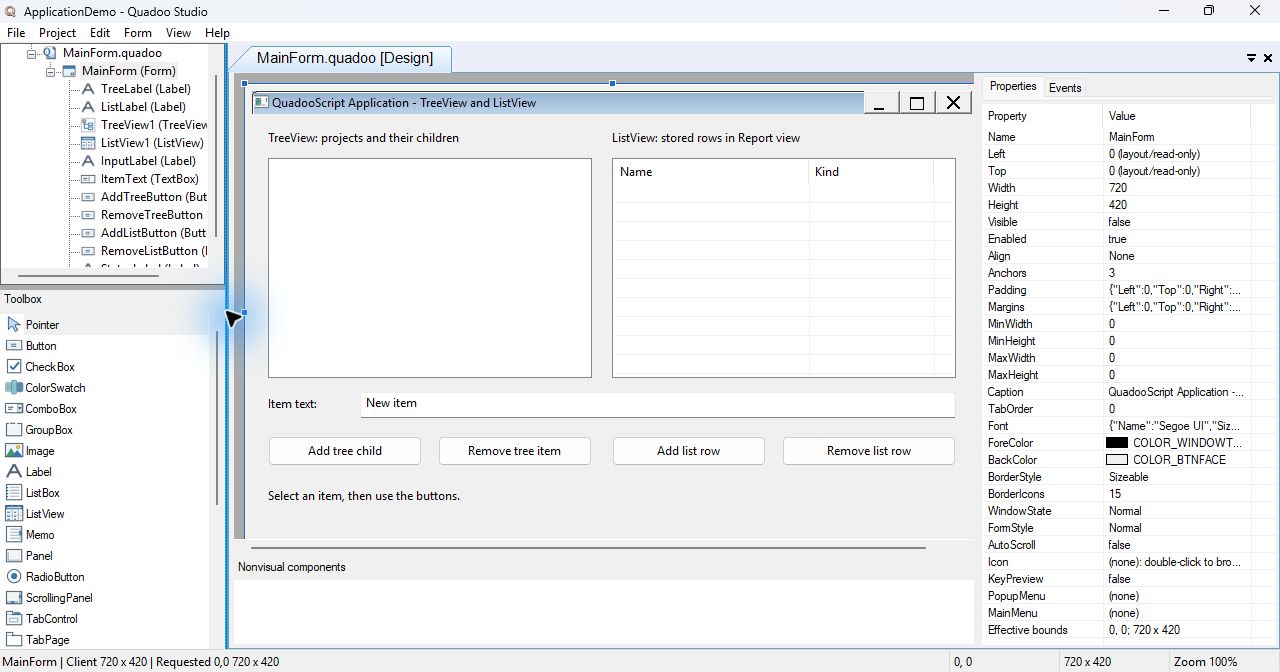
- Components: choose a visual control in the Toolbox, then click or drag its rectangle on the canvas. Controls are placed in the compatible container under the pointer. Nonvisual components, such as Timer, ImageList, dialogs, and QuadooPlugin, appear in the component tray.
- Selection and layout: select a control on the canvas or in Objects. Drag to move; use the grips to resize. Geometry is stored in logical pixels at 96 DPI. Align, Anchors, Padding, and Margins control layout. Containers retain their children's relative bounds.
- Properties: set Name to the intended script member name. Double-click a value, or select it and press F2/Enter. Enter commits; Escape cancels. Booleans, enums, fonts, colors, images, and collections have appropriate editors. Correct or cancel an invalid inline edit before switching views or saving.
- Events: select the Events tab and bind an event to a method name. With an event row selected, use Form > Create/Open Event Handler, the row's context menu, or Ctrl+Enter. Studio opens a compatible method or inserts a new implementation and navigates to it.
- Keyboard order: use Form > Tab Order for a container's direct children. Preview and the running application use the native keyboard routing.
For an empty binding, Studio proposes ComponentName_EventName, dropping an initial On. You can choose another valid method name. Handlers use virtual function HandlerName(oArgs); their interface declarations use = 0.
Generated members and event arguments
Studio owns the GUID-marked members and events regions in the actual .quadoo buffer. Each named control or nonvisual component gets a property var. A simplified excerpt looks like this; keep the actual generated markers and identities supplied by Studio:
interface IMainForm
{
	// Studio-generated event declaration
	virtual function AddTreeButton_Click (oArgs) = 0;
};

class MainForm : extern(Form), IMainForm
{
	// Studio-generated member declaration
	property var TreeView1;

	MainForm ()
	{
		Form = Form.Create(this);
	}
	// Your handler implementations belong outside the managed regions.
};
The actual members region also contains reserved __QuadooUnitId metadata and the __QuadooRoot accessor. The latter allows the runtime to install the live Form/Frame wrapper before initialization callbacks. Preserve both. Studio inserts a missing constructor; an existing user constructor must perform the appropriate Create call itself.
Renaming a control updates its generated property declaration, but does not rename handler methods or rewrite your references in user code. Deleting components removes their owned declarations while preserving your method bodies. Tree nodes, ListView rows, and ListView columns are collection objects; they do not generate separate script properties or Objects-tree entries.
Event arguments expose EventName, Sender, and the event's named fields. Set writable fields such as oArgs.Cancel = true or oArgs.Handled = true during the callback when that event supports them. Returning false does not cancel an event: Boolean and null returns indicate successful dispatch. Argument writes after dispatch are rejected.
Use Form > Synchronize Script Declarations to reconcile intact managed regions. Conflicting user declarations, manual edits inside owned regions, or source Undo that diverges from the design can require repair. Complete designer/source Undo synchronization is still under development.
Build your first application
This example displays a project hierarchy in a TreeView and file details in a ListView. Four buttons add and remove items using the text in a TextBox. Download the tested source project, extract it to a writable folder, and open ApplicationDemo.qsproj in Studio. The ZIP contains source and a definition, without executable binaries.
1. Create the Form and controls
Follow Create an Application project using ApplicationDemo.qsproj and MainForm.quadoo. Set the Form's Width to 720, Height to 420, and Caption to QuadooScript Application - TreeView and ListView. Place these controls directly on the Form and set their Names:
| Type / Name | Left, Top, Width, Height | Other properties |
|---|---|---|
TreeView / TreeView1 | 16, 44, 324, 220 | Leave Items empty; the initialization handler adds the nodes. |
ListView / ListView1 | 360, 44, 344, 220 | ViewStyle = Report; OwnerData = false; MultiSelect = false; FullRowSelect = true; GridLines = true. |
TextBox / ItemText | 108, 278, 596, 26 | Text = New item. |
Button / AddTreeButton | 16, 322, 154, 30 | Caption = Add tree child. |
Button / RemoveTreeButton | 186, 322, 154, 30 | Caption = Remove tree item. |
Button / AddListButton | 360, 322, 154, 30 | Caption = Add list row. |
Button / RemoveListButton | 530, 322, 174, 30 | Caption = Remove list row. |
Label / StatusLabel | 16, 374, 688, 24 | Caption = Select an item, then use the buttons. |
The downloaded project also adds three explanatory Labels: TreeLabel at 16,16 (320 × 24), ListLabel at 360,16 (340 × 24), and InputLabel at 16,282 (88 × 22). Their captions are visible in the screenshots.
Select ListView1 and open Form > ListView Columns Editor. Add two columns in this logical order: Name, Width 195, Alignment Left; Kind, Width 125, Alignment Left. Accept with OK. The ListView section explains the editor.
2. Create the event handlers
Select each component, open Events, and create/open these bindings. Use these names so the code below can be used directly:
| Component | Event | Handler name |
|---|---|---|
| MainForm | OnCreate | MainForm_Create |
| AddTreeButton | OnClick | AddTreeButton_Click |
| RemoveTreeButton | OnClick | RemoveTreeButton_Click |
| AddListButton | OnClick | AddListButton_Click |
| RemoveListButton | OnClick | RemoveListButton_Click |
Keep Studio's generated declarations. Replace the generated method implementations with the bodies shown here and in the TreeView/ListView sections. These methods all belong inside class MainForm, outside the managed regions. Do not add a second copy of an existing method.
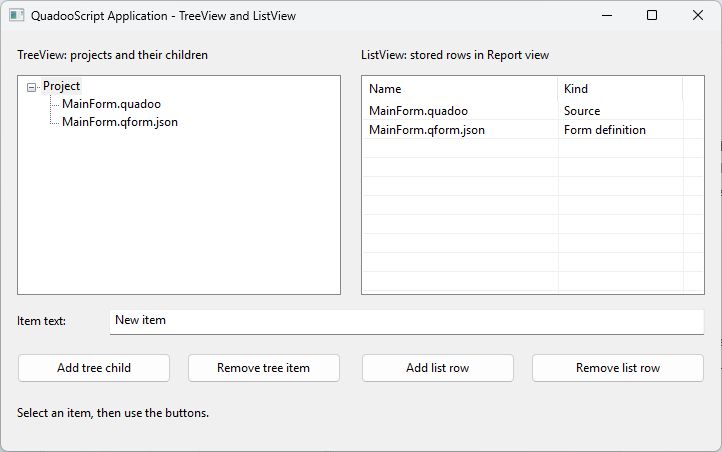
	virtual function MainForm_Create (oArgs)
	{
		var root = TreeView1.Items.Add("Project");
		root.Children.Add("MainForm.quadoo");
		root.Children.Add("MainForm.qform.json");
		root.Expanded = true;
		TreeView1.Selected = root;
		var row = ListView1.Items.Add("MainForm.quadoo");
		row.SubItems.Add("Source");
		row = ListView1.Items.Add("MainForm.qform.json");
		row.SubItems.Add("Form definition");
		return true;
	}
The root and named control properties are already available in OnCreate. ListView column zero uses the row's Caption; the Kind column uses SubItems[0]. No extra source file or user-written WinMain is needed.
3. Build, run, and try it
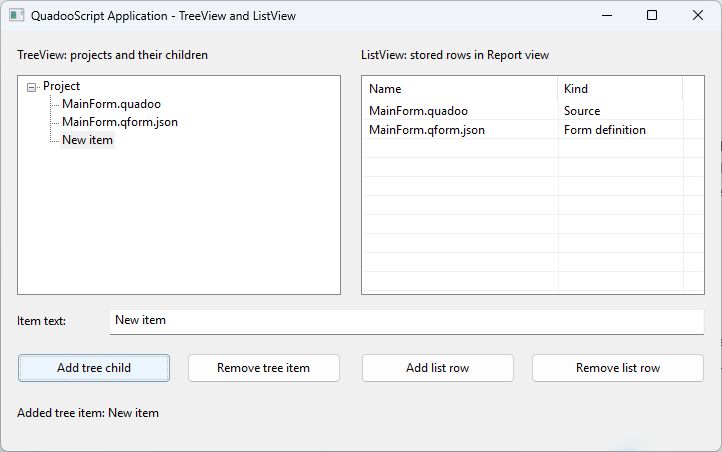
After adding the four button methods below, choose File > Save All, then Project > Start Without Debugging (Ctrl+F5). Studio builds and launches the executable. Expand Project in the TreeView, select a node, and click Add tree child. Select the newly added node and remove it. Add a list row, select it, and remove it. Closing the main Form ends the application.
TreeView: design, add, and remove nodes
A TreeView contains hierarchical node objects. TreeView1.Items is the root collection, and each node's Children is its child collection. The Studio Objects tree contains a single entry for TreeView1; data nodes stay inside the TreeView.
Design-time nodes
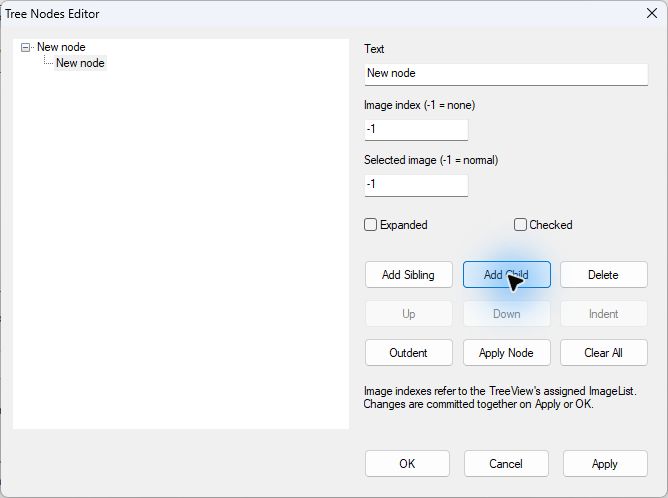
- Select a TreeView in Design view. Open Form > Tree Nodes Editor, its control context menu, or double-click its Items property.
- Use Add Sibling to add a root when the tree is empty, or a sibling of the selected node. Use Add Child to add below the selection.
- Edit Text, image indexes, Expanded, and Checked. Use Apply Node to apply the selected node's field changes to the working tree. Up/Down and Indent/Outdent change its position.
- Select a node and use Delete to remove its branch, or Clear All to empty the tree. OK or Apply commits the working definition. Cancel discards changes since the last Apply.
Assign an ImageList component through Images to display node icons. ImageIndex is zero based; -1 means no normal image. SelectedImageIndex -1 reuses the normal image. CheckBoxes enables two-state checks; ReadOnly = false enables native label editing.
Runtime addition and removal
	virtual function AddTreeButton_Click (oArgs)
	{
		var parent = TreeView1.Selected;
		var node;
		if(parent == null)
		{
			node = TreeView1.Items.Add(ItemText.Text);
		}
		else
		{
			node = parent.Children.Add(ItemText.Text);
			parent.Expanded = true;
		}
		TreeView1.Selected = node;
		StatusLabel.Caption = "Added tree item: " + node.Text;
		return true;
	}

	virtual function RemoveTreeButton_Click (oArgs)
	{
		var node = TreeView1.Selected;
		if(node != null)
		{
			node.Delete();
			StatusLabel.Caption = "Removed tree branch.";
		}
		return true;
	}
Add creates a root when there is no selection, or a child of the selected node otherwise. Deleting a node deletes its complete branch and clears a selection in that branch. The example does not delete files: its node text is only application data.
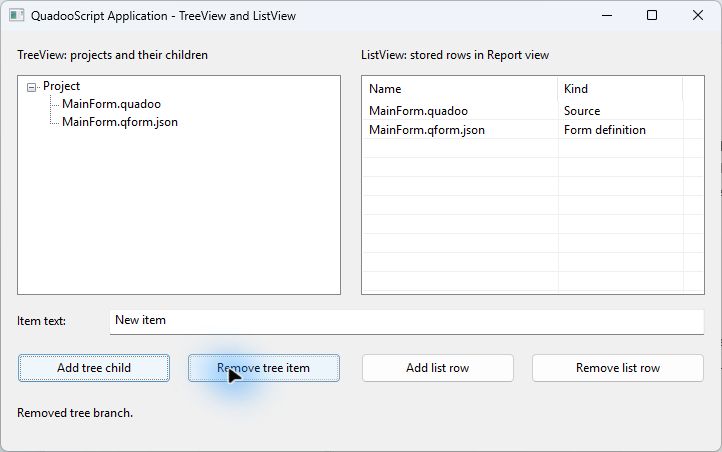
Other implemented operations include Items.GetAt(index), Items.Insert(index, text), Items.Find(guid), Items.Clear(), and node.MoveTo(parent, index); a null parent means the root level. Indexes can change after insertion or movement. Keep a node reference or its ID for identity. After deletion, a retained node exposes ID and Attached; other node operations fail.
Selection events include OnChanging (with writable Cancel) and OnChange; their Node and OldNode arguments may be null. Expansion, label editing, and checking have their own events. Tree mutations during tree notifications are rejected, so add/remove from an independent button handler as above.
ListView: columns, rows, and removal
ListView is a native multi-column control, distinct from ListBox. Its Columns collection describes the columns, while Items contains stored rows when OwnerData is false. Report view displays the headers and subitems used in this example.
Design the columns
- Select one ListView. Open Form > ListView Columns Editor, the control context menu, or double-click its Columns property.
- Use Add to create a column. Enter Caption and Width (logical pixels at 96 DPI), choose Alignment, and use Apply Column. The first logical column must remain left aligned.
- Up/Down changes logical indexes and carries the associated row cells with the columns. Display position changes their visual order independently. Size to Caption sizes the selected column; the Report header preview is read-only.
- Select a column and use Delete to remove it, or Clear to remove all columns. OK or Apply commits the working definition. Cancel discards changes since the last Apply.
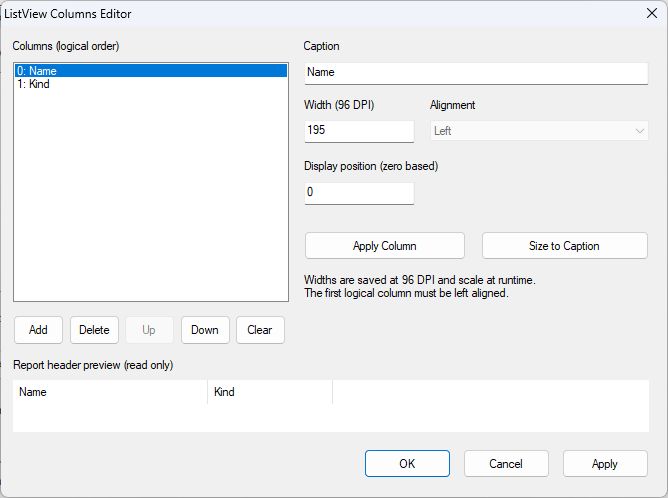
There is no ListView row/item editor in the designer. Populate rows in script. The column editor does not provide Add Row or Delete Row actions.
Add and remove stored rows in script
	virtual function AddListButton_Click (oArgs)
	{
		var row = ListView1.Items.Add(ItemText.Text);
		row.SubItems.Add("Added at runtime");
		ListView1.Selected = row;
		StatusLabel.Caption = "Added list row: " + row.Caption;
		return true;
	}

	virtual function RemoveListButton_Click (oArgs)
	{
		var row = ListView1.Selected;
		if(row != null)
		{
			row.Delete();
			StatusLabel.Caption = "Removed list row.";
		}
		return true;
	}
Items.Add(caption) returns the new row. SubItems is a live string facade in script: index zero corresponds to the second logical column. ListView1.Selected returns a selected row or null; this example uses single selection. row.Delete() removes the row.
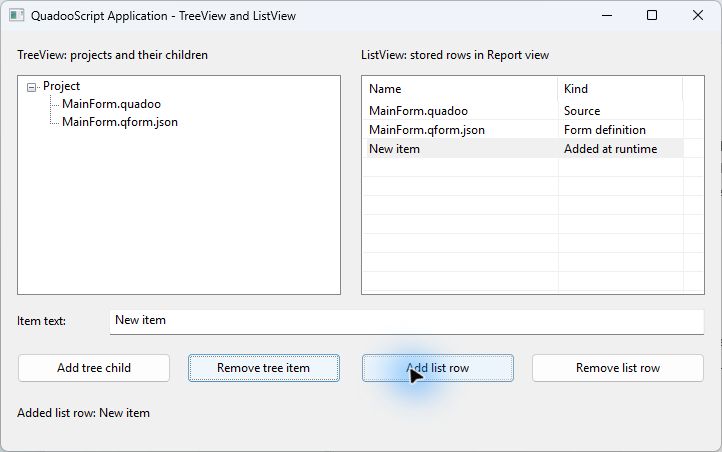
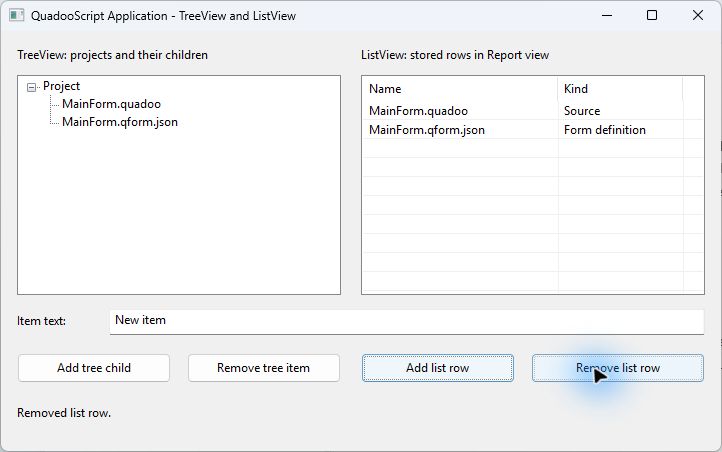
Stored collections also support Items.Insert(index, caption), Items.GetAt(index), Items.Find(guid), Items.Delete(row), and Items.Clear(). Columns support Add, Insert, Delete, Move, Find, and Clear. Retained detached rows/columns expose ID and Attached; reacquire live items before other operations. Row indexes change as the collection changes.
Use ListView1.BeginUpdate() and ListView1.EndUpdate() around bulk changes, ensuring EndUpdate runs even when your code handles an error. Events include OnInsert, OnDeletion, OnChanging/OnChange, OnItemChecked, OnColumnClick, and OnCompare. Sorting is explicit through Sort(columnIndex, ascending); binding OnColumnClick alone does not sort the data. Mutating a collection from its own notification is rejected.
OwnerData is a different, implemented workflow
With OwnerData = true, the application supplies virtual row data through OnData and sets Items.Count. Stored Add/Insert/Delete/Move/Clear/Find/Sort operations are rejected; the four introductory handlers therefore require OwnerData = false. Count is runtime data and is not serialized.
OnData supplies display values without storing them in the control. Accepted edits/checks use OnDataUpdate: persist the proposed change in your data model before setting Handled = true. Virtual item objects are snapshots for a request/generation, rather than stable stored rows. OwnerData, its provider callbacks, and virtual writeback are implemented; broader platform validation remains incomplete as described below.
Use Forms and reusable Frames
A Form is a top-level window; a Frame is an independently defined child root that requires a live container owner. Use File > New Frame to create DetailsFrame.quadoo and DetailsFrame.qframe.json. Studio supplies the matching constructor:
DetailsFrame (Owner)
{
	Frame = Frame.Create(this, Owner);
}
For example, after adding a Panel named DetailsPanel to MainForm, add a user-owned property var Details; outside its managed members region, then instantiate the Frame in MainForm's initialization handler:
Details = new DetailsFrame(DetailsPanel);Each Frame instance has its own script object, event bindings, and named component namespace even when instantiated from the same definition. Frames attach at runtime; a scripted Frame definition is not inserted as an ordinary definition child by the designer. Frame Preview is unavailable. Visual form inheritance remains deferred.
Additional Forms use the same Form.Create pattern. The live Form wrapper provides Show/ShowForm, Hide/HideForm, Close, and ShowModal. Close returns false if OnCloseQuery cancels. Hide preserves the window and does not end the application's message loop. Accepted destruction of the main Form ends the application; closing a secondary Form does not.
Build and run
Project > Start Without Debugging (Ctrl+F5) is the implemented Application build/run path. It synchronizes associated units and runs Save All before building. Fix a source/declaration conflict or invalid inline property first. No Application-specific command-line project builder is provided by this guide.
- Studio compiles all project source entries through private, in-memory startup source. Use
#pragma oncein shared units to avoid repeated inclusion. Keep helper source files in the project's source list. - The generated startup function constructs the Default Form and calls
Host.RunApplication(mainForm, nCmdShow). Do not supply a competingWinMain. There is no generatedMain.quadoodocument to edit. - Studio validates the matching
AQVMT.bin, prepares a project-named executable, embeds bytecode, the application catalog, and class-named QFORM/QFRAME definitions, and applies the optional project icon. - It stages the five runtime DLLs and explicitly configured module files beside the executable, then publishes the prepared output. Ordinary copy/resource/publication failures preserve the previous good output; this is not a crash or power-loss guarantee.
- It launches the program using the arguments and working directory in Project > Edit Run Parameters. Relative start directories resolve against the project directory.
A Win32 Studio build produces bin\Win32\ProjectName.exe; an x64 Studio build produces bin\x64\ProjectName.exe. Architecture follows the Studio build, with the matching template and DLLs. There is no Application target-architecture or Debug/Release selector documented in the implemented project settings.
Form > Preview (Ctrl+F9) is useful for inspecting a Form's native layout and keyboard behavior. It suppresses script handlers and does not replace running the Application. F5 debugging and Project > Compile are disabled for Application projects, even though those commands exist for other project targets.
Building the native tools from source
Maintainers building Studio and its native runtime use the repository's Visual Studio 2008 / SDK 6.0A toolchain. From the native repository root, the supplied helper accepts a configuration and platform:
desktop\QuadooStudio\build-studio.cmd Release Win32The helper accepts Debug or Release, Win32 or x64, and an optional final --test. It builds the affected native projects, including the parser and AQVMT, while reusing existing JSON, CodeEdit, VM, and SimbeyCore dependencies in the selected configuration. Those prerequisite binaries/import libraries must already be available. This command builds the authoring/runtime tools; use Studio's Ctrl+F5 workflow above to build a .qsproj application. The source validation reports retain the GUI-suite blockers listed below.
Icons, resources, and optional modules
Project > Settings is available for Application projects in Code or Design view. Load/Clear chooses the application icon, accepting validated ICO/PNG input; PNG is converted to icon data. The icon is stored in the project and embedded as standard Windows executable icon resources. Cancel discards dialog edits; OK saves them.
Form/Frame JSON definitions and their embedded Image/ImageList payloads travel inside the executable. That does not automatically embed arbitrary files your script opens. Package external data and other explicitly loaded scripts separately.
The Settings module list copies explicitly selected files beside the executable. It stores project-relative paths where possible, resolves them against the project directory, and preserves their base filenames. Missing files and filename collisions with dependencies, runtime DLLs, or the output executable cause a build error.
For declared dependencies, the host's one-argument Host.LoadQuadoo(name) can resolve the cataloged filename beside the running executable. A QuadooPlugin component uses its Module property to obtain a module object; its named script property holds that module object before OnCreate. Existing Module and Modules\ lookup attempts are retained, with the declared executable-adjacent copy as an additional fallback. Other loading paths retain their existing lookup and working-directory behavior.
For example, add your existing Helpers.qbc to the Settings module list and use its declared filename when loading it. A native plugin DLL may itself require other native libraries or data files. Studio copies the listed file only; it does not discover or recursively copy those dependencies.
Removing a module from Settings removes its build/catalog entry but does not sweep old copied files out of the output folder. Review distribution contents after changing dependencies. Design-time packages and their placeholder factories are not runtime implementations; AQVMT does not load them. General third-party native factory bootstrap/deployment and arbitrary extension-specific script methods remain separate work.
Distribute an application
After a successful Ctrl+F5 build, close the running copy before rebuilding or updating it. Prepare a distribution folder containing the generated executable and the matching native dependencies:
ApplicationDemo.exe
QuadooForm.dll
QuadooVM.dll
QuadooParser.dll
JSON.dll
SimbeyCore.dll
...explicit optional module files and their dependencies...
...external application data, when used...
QuadooParser.dll is currently required. Although the main script is already bytecode, AQVMT still links the shared host/parser functionality. Do not infer that it can be omitted from this Application host's dependency set.
- Use runtime files from the same build and architecture as the executable. For distribution, use release builds of Studio/template/runtime; debug CRT dependencies are development requirements.
- Supply the Visual C++ 2008 CRT required by the native binaries' manifests through its supported deployment mechanism. The builder stages the five named QuadooScript/QuadooForm DLLs; it does not install or package the CRT.
- Include optional module dependencies and external data explicitly. Check dependencies of native plugins as well as the plugin itself. A developer machine's installed libraries can hide a missing file.
- Run the copied executable from the distribution folder, then test with a different working directory and on a machine without your development paths. Confirm startup, controls, events, module loading, and shutdown.
The embedded script and definitions do not require shipping .qsproj, .quadoo, or .qform.json/.qframe.json for ordinary startup. AQVMT.bin is a build input; the generated executable already contains its host code. Studio and the designer are authoring tools, and IIS is not needed to run the desktop program. QuadooForm uses published native interfaces without COM registration.
There is no Application installer generator, dependency scanner, or completed standalone export/publishing workflow in this implementation. You prepare the distribution folder and any installer separately. XP-oriented project/API compatibility is retained in source, but actual XP execution and complete validation across platforms are not established by this guide.
Implementation status and troubleshooting
| Implemented | Under development or verification limits |
|---|---|
| Application projects; paired Form/Frame design; Properties/Events; generated declarations; native Form Preview. | Application debugging; Frame Preview; visual form inheritance; complete designer/source Undo synchronization. |
| Ctrl+F5 builds embedded applications and runs the Default Form; icon and explicit module preparation. | Separate Application Compile/export UI, remote staging, redistribution tooling, and transitive dependency discovery. |
| TreeView node editing and runtime node collections; stored ListView rows, columns, events, and OwnerData providers; ListView column editor. | No designer row editor. Latest ListView work has focused Win32 Debug/Release coverage; current x64 regressions and actual XP execution remain verification work. |
| QuadooPlugin runtime module objects and general descriptor property/event binding. | General external factory bootstrap/deployment and arbitrary extension-specific native methods need additional runtime integration. |
- Run is unavailable: ensure a Form source is Default. An empty project or a Frame alone cannot start an application.
- Template/dependency preparation fails: check that AQVMT.bin and the matching five DLLs are beside Studio, and that the output folder is writable. Close an existing running copy if its executable is locked.
- Construction fails after binding an event: confirm the handler exists with a compatible declaration in the unit's events interface. Nonempty callback names are resolved eagerly before OnCreate.
- Generated declarations conflict: inspect the indicated source region, preserve user code, and use Synchronize Script Declarations where the owned boundaries remain valid. Do not overwrite ambiguous regions blindly.
- Preview has no rows or button behavior: it suppresses scripts. Use Ctrl+F5 for OnCreate and click handlers.
- List additions fail: these examples need OwnerData = false. Virtual collections use providers rather than stored-item mutations.
- A module works only inside Studio: declare its file in Settings, use the deployed filename where supported, include native/transitive dependencies, and check the working directory.
- Save reports external changes: preserve unsaved edits before reopening the disk version. Automatic conflict merge/reload is not implemented.
The source validation reports also retain broad GUI-suite blockers involving clipboard preservation and Preview GDI resource counts. Focused control tests passing does not establish that those broader issues are fixed.
Implementation references and verification
This guide follows the implementation reviewed on October 26, 2026. Paths below are relative to the native source repository. Older architecture proposals and stage reports describe earlier milestones; the current implementation and later reports take precedence.
- Project creation and UI:
desktop/QuadooStudio/QuadooStudio/NewProjectDlg.cpp,ApplicationProject.cpp,QuadooStudio.rc,QuadooProject.cpp, andStudioDesigner.cpp. - Source synchronization:
desktop/QuadooStudio/SourceSynchronization.md,QuadooStudio/FormSourceSync.cpp,QuadooStudio/StudioSource.cpp, and the generated example source. - Build/run and settings:
desktop/QuadooStudio/QuadooStudio/ApplicationTarget.cpp,RunParamsDlg.cpp,desktop/QuadooStudio/ApplicationSettings.md,Stage4Validation.md,Stage4ApplicationRuntimePlan.md,ApplicationDesignerIntegration.md,QuadooStudio.sln,build-studio.cmd, andExamples/Application. - Application host and runtime contract:
platform/QuadooScript/AQVMT/WinMain.cpp,AQVMT.vcprojand its release manifest;platform/QuadooForm/ScriptAdapter/README.md,RuntimeObjects.cpp,TreeObjects.cpp, andListViewObjects.cpp. - Native interfaces and designer:
platform/QuadooForm/Published/QuadooForm.h,QuadooFormArchitecture.md,DesignerReadme.md,QuadooForm.sln, andQuadooForm/QuadooForm.vcproj. - TreeView/ListView:
platform/QuadooForm/TreeViewImplementation.md,ListViewStage3.md,ListViewStage4.md,ListViewStage5.md,DesignerExamples/ListViews.qform.json, anddesktop/QuadooStudio/ApplicationTests/TreeRuntime.quadoo,TreeForm.json,ListRuntime.quadoo,ListForm.json, andListViewContract.quadoo.
The supplied source example was synchronized and built through the local Win32 release Studio. Its initialization, tree addition/removal, and list addition/removal were exercised in the running application. A separate copy of its executable and five DLLs also started with the original project, script, and definition hidden, using the Windows directory as its working directory, and closed with exit code zero. Screenshots are captures of that application and Studio's actual editors. The tree-editor demonstration was canceled to preserve the script-initialized example.