SQLite Account Ledger
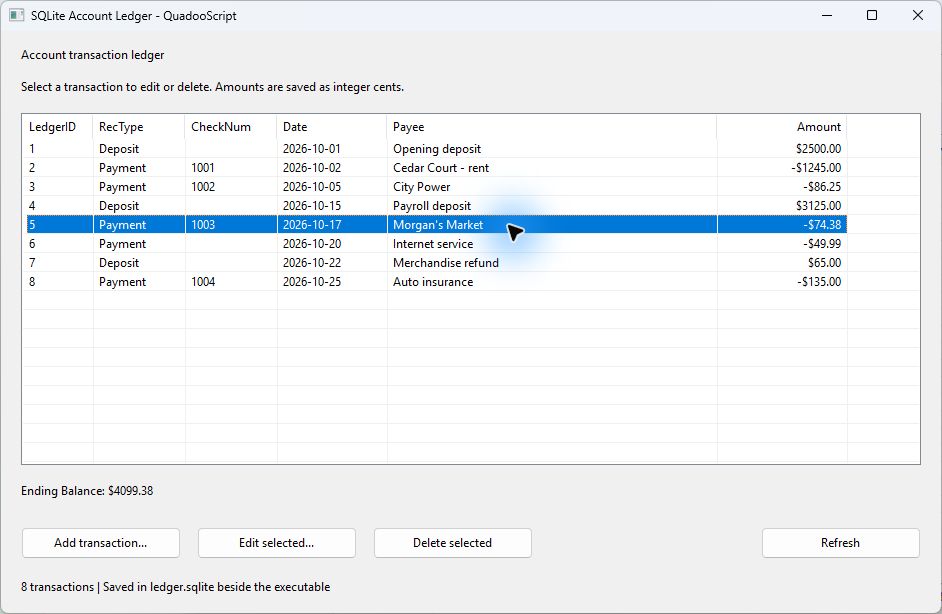
This QuadooScript Application keeps an account's transactions in SQLite, displays them in a report-style ListView, and opens separate owned modal Forms to add or edit a transaction. A nonvisual QuadooPlugin component supplies the real QSDB database object at runtime. The main Form shows the ending balance beneath the list.
Download the complete ledger project — QuadooScript sources, three Form definitions, the populated SQLite database, schema, instructions, and Win32 QSDB/SimbeyDB module dependencies.
Built and verified with the local Win32 release Studio/runtime on October 27, 2026. All sample transactions are fictional. For the general designer, build, and dependency workflow, see the Application Development Guide.
Contents
- Open, build, and run
- Project files and components
- SQLite schema and money representation
- QuadooPlugin and the direct session
- Populate the report ListView
- Owned Add and Edit modal Forms
- Bound inserts, updates, and deletion
- Calculate the ending balance
- Database placement and distribution
- Verification and source references
Open, build, and run
- Extract the complete ZIP to a writable folder. Its project is configured for 32-bit Quadoo Studio, using the included Win32 module DLLs.
- Choose File > Open Project and open
LedgerExample.qsproj. LedgerForm is already the Default startup Form. - In Project > Settings, the module list already contains
.\Modules\SimbeyDB.dlland.\Modules\QSDB.dll. The main Form's nonvisual component is namedDBPlugin, with Module set toQSDB.dll. - Choose Project > Start Without Debugging (Ctrl+F5). Studio compiles the scripts and embeds the three Form definitions in
bin\Win32\LedgerExample.exe, then stages the runtime DLLs and declared modules beside it. - The ZIP already places the sample database at
bin\Win32\ledger.sqlite, where the application reads it. The initial ending balance is $4099.38.
Keep the matching AQVMT.bin and runtime DLLs beside Studio. Use a current Studio/runtime build with Application, ListView, and runtime QuadooPlugin support. Native Preview suppresses scripts, so it does not load the ledger or run the transaction buttons.
Use Add transaction to create a payment or deposit. Select a row to enable Edit selected and Delete selected. Save transaction validates and persists the record; Cancel closes the popup without writing. Delete asks for confirmation before removing the selected record. Refresh reloads the database and recalculates the balance.
Project files and components
| File | Purpose |
|---|---|
LedgerExample.qsproj | Application target, Default Form, source/definition associations, generated declaration metadata, and the two module dependencies. |
LedgerData.quadoo | LedgerStore, SQLite direct-session access, bound SQL, amount/date validation, currency formatting, and shared popup helpers. |
LedgerForm.quadoo / LedgerForm.qform.json | The report ListView, DBPlugin component, transaction buttons, ending balance, and status. |
AddTransactionForm.quadoo / .qform.json | A separate owned Form for new transactions. |
EditTransactionForm.quadoo / .qform.json | A separate owned Form that loads and updates the selected LedgerID. |
schema.sql | The table definition. LedgerStore also ensures the table exists when opening a database. |
bin\Win32\ledger.sqlite | The actual populated SQLite database. It is application data, outside the executable's resources. |
Modules\QSDB.dll / SimbeyDB.dll | The included Win32 database plugin and its native database implementation. Studio copies both into the output folder. |
The main ListView is named Transactions. It uses ViewStyle = Report, OwnerData = false, FullRowSelect = true, MultiSelect = false, GridLines = true, and ReadOnly = true. Its six logical columns match the database fields. Editing goes through the popup Forms rather than native label editing.
Each popup has TypeChoice (a DropDownList ComboBox containing Payment and Deposit), CheckText, DateText, PayeeText, AmountText, ErrorLabel, SaveButton, and CancelButton. The designer generates these members and the events interface. Keep its GUID-marked regions intact.
SQLite schema and money representation
CREATE TABLE Ledger (
	LedgerID INTEGER PRIMARY KEY AUTOINCREMENT,
	RecType TEXT NOT NULL CHECK(RecType IN ('Payment','Deposit')),
	CheckNum TEXT NOT NULL DEFAULT '' CHECK(length(CheckNum)<=24),
	[Date] TEXT NOT NULL CHECK(length([Date])=10 AND [Date] GLOB '[0-9][0-9][0-9][0-9]-[0-9][0-9]-[0-9][0-9]'),
	Payee TEXT NOT NULL CHECK(length(trim(Payee)) BETWEEN 1 AND 120),
	Amount INTEGER NOT NULL CHECK(typeof(Amount)='integer' AND Amount BETWEEN 1 AND 999999999)
);- LedgerID: a stable, automatically generated integer primary key. It is independent of the row's position in the UI.
- RecType: Payment or Deposit. Amount is positive for both; the record type determines its effect on the balance.
- CheckNum: optional text, stored as an empty string when absent. Values such as
0012retain their leading zeros. - Date: ISO text in
YYYY-MM-DDform. The popup validates real calendar dates between 1900 and 9999, including leap years. The database CHECK enforces the text's basic shape. - Payee: a required description, trimmed by the popup and limited to 120 characters.
- Amount: integer cents. For example,
12345represents $123.45. The popup accepts 0.01 through 9999999.99, without signs, currency symbols, commas, or more than two fractional digits.
Keeping cents as integers avoids binary floating-point rounding in storage and summation. Money() formats the integer for display, and ParseAmount() converts validated decimal text to cents using digit arithmetic. Deposits display as positive currency; payments display with a minus sign.
QuadooPlugin and the direct session
The main definition contains this nonvisual component:
{
	"type": "QuadooPlugin",
	"name": "DBPlugin",
	"properties": { "Module": "QSDB.dll" }
}
At runtime AQVMT loads the module and replaces the generated DBPlugin member with the real module object before OnCreate. QSDB's native factory creates a CQSDB object. There is no need to declare a script class named CQSDB or instantiate it manually.
LedgerForm passes DBPlugin to LedgerStore. The relevant initialization is:
DataFile = dataFile;
oQSDB.EnsureDatabase("SQLite", dataFile);
Environment = oQSDB.CreateEnvironment("SQLite", dataFile);
Session = Environment.OpenDirectSession();
EnsureDatabase creates a missing SQLite file; it preserves an existing file. The directory must exist and be writable. The store then uses Session.Execute(), Session.Query(), and Session.CreateBindStmt() for all table operations. It creates the Ledger table if missing and leaves a new database empty rather than repeatedly inserting sample records.
The application locates the database beside its own executable, independently of the process working directory:
var executable = Host.NativeModule;
var dataFile = left(executable, instrrev(executable, "\\") + 1)
	+ "ledger.sqlite";
Store = new LedgerStore(DBPlugin, dataFile);
The project declares both native files, including SimbeyDB's dependency on behalf of QSDB. The builder copies explicit dependencies; it does not discover this dependency automatically:
"modules": [
	".\\Modules\\SimbeyDB.dll",
	".\\Modules\\QSDB.dll"
]
Populate the report ListView
LedgerStore.Rows() queries records in date order, using LedgerID to break ties:
return Session.Query(
	"SELECT LedgerID, RecType, CheckNum, [Date], Payee, Amount "
	+ "FROM Ledger ORDER BY [Date], LedgerID");
QSDB returns null for an empty query. A nonempty query is already positioned on its first row. Read that row before calling MoveNext(), using the do ... while loop in LedgerForm.Reload().
var ledgerID = query.ReadInt(0);
var kind = query.ReadText(1);
var row = Transactions.Items.Add("" + ledgerID);
row.Data = ledgerID;
row.SubItems.Add(kind);
row.SubItems.Add(query.ReadText(2));
row.SubItems.Add(query.ReadText(3));
row.SubItems.Add(query.ReadText(4));
var cents = query.ReadInt(5);
row.SubItems.Add(Money(kind == "Payment" ? -cents : cents));
Caption is column zero (LedgerID); SubItems[0] begins with RecType. Each row's Data holds its database LedgerID. Edit and Delete read that value, never the visual index. After a successful save, Reload selects the returned SavedID in the refreshed list.
Reload uses BeginUpdate()/EndUpdate() and releases the query after reading it. The selection-change handler only updates the other buttons' Enabled properties; it does not modify the ListView from inside its own notification.
Owned Add and Edit modal Forms
The two popup Forms use the requested ownership pattern. For example, AddTransactionForm retains the parent script object for database access, then passes it to Form.Create:
AddTransactionForm (oParent)
{
	LedgerOwner = oParent;
	TransactionID = 0;
	Form = Form.Create(this, oParent);
}

function ShowModal ()
{
	return Form.ShowModal();
}
EditTransactionForm has the same constructor and ShowModal method. Its OnCreate helper fetches LedgerOwner.CurrentID through Store.Find() and fills the controls. The parent is assigned before Create because OnCreate runs during native construction.
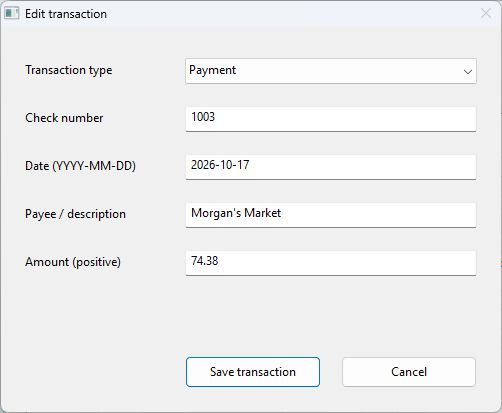
LedgerForm opens an instance and refreshes only after an accepted save:
var editor = new AddTransactionForm(this);
if(editor.ShowModal() == 1)
{
	Reload(editor.SavedID);
}
The shared SaveTransactionEditor() helper validates the fields, performs the database operation, stores SavedID, and returns true on success. The popup's own SaveButton_Click implementation then completes the modal operation:
virtual function SaveButton_Click (oArgs)
{
	if(SaveTransactionEditor(this))
	{
		Form.ModalResult = 1;
		Form.Close();
	}
	return true;
}
Keep operations on the external Form alias inside its own class; shared helpers use the exposed properties and controls. Setting ModalResult to 1 and closing makes ShowModal() return the accepted result. On validation or database failure the popup remains open with an explanation. Cancel calls Form.Close() without saving or setting the accepted result.
Bound inserts, updates, and deletion
LedgerStore.Save() selects INSERT for a zero LedgerID and UPDATE for an existing ID. All editable values are bound, including names with apostrophes or other SQL punctuation:
var statement = Session.CreateBindStmt(
	"INSERT INTO Ledger (RecType, CheckNum, [Date], Payee, Amount) "
	+ "VALUES (@type,COALESCE(@check,''),@date,@payee,@amount)");
statement.Bind("@type", recType);
statement.Bind("@check", checkNum);
statement.Bind("@date", dateText);
statement.Bind("@payee", payee);
statement.Bind("@amount", amount);
statement.Execute();
return Session.LastInsertID;
COALESCE normalizes an empty check number to SQL empty text. This also handles the native wrapper's empty-string/NULL behavior when a blank CheckNum has been read from the database and saved again.
UPDATE Ledger
SET RecType=@type, CheckNum=COALESCE(@check,''), [Date]=@date,
	Payee=@payee, Amount=@amount
WHERE LedgerID=@id
Delete likewise binds the selected ID:
var statement = Session.CreateBindStmt(
	"DELETE FROM Ledger WHERE LedgerID=@id");
statement.Bind("@id", ledgerID);
statement.Execute();
Update and Delete check SELECT changes() to detect a transaction that no longer exists. Each write is one SQLite statement. The displayed list and balance are reloaded after the write succeeds. Delete persists immediately after confirmation and has no application Undo operation.
Calculate the ending balance
The ending balance is calculated from the complete database table, with payments subtracted and deposits added:
SELECT COALESCE(
	SUM(CASE RecType WHEN 'Deposit' THEN Amount ELSE -Amount END),
	0
)
FROM Ledger
COALESCE produces zero for an empty ledger. Store.Balance() reads the integer result and the main Form updates the label:
BalanceLabel.Caption = "Ending Balance: " + Money(Store.Balance());The initial database has $5690.00 in deposits and $1590.62 in payments, giving an ending balance of $4099.38. Refresh and successful Add/Edit/Delete actions recalculate this value from SQLite.
Database placement and distribution
The executable embeds code and Form definitions. The database remains an external writable file. ledger.sqlite is intentionally not a module dependency: copying a seed database on every build would overwrite the user's transactions. Studio's ordinary build leaves this data file in place.
After building, close the application and prepare a folder containing:
LedgerExample.exe
QuadooForm.dll
QuadooVM.dll
QuadooParser.dll
JSON.dll
SimbeyCore.dll
QSDB.dll
SimbeyDB.dll
ledger.sqlite
Use matching native architectures and supply the Visual C++ 2008 CRT required by those binaries. The included SimbeyDB build provides SQLite; this example does not require a separate SQLite server, sqlite3.dll, or COM registration. Copy the database while the application is closed, and preserve an existing ledger when updating the executable.
The ZIP supplies the two Win32 module dependencies but omits the generated EXE and the five common runtime DLLs; Studio builds and stages those using its matching installed files. For x64, replace both module DLLs with matching x64 versions, use x64 Studio/template/runtime, and copy the desired database to bin\x64\ledger.sqlite before the first run. This example's validation used Win32 release builds.
Verification and source references
The example was synchronized and built through Studio. Database tests checked formatting, decimal parsing and bounds, calendar validation, empty queries, balances, bound text, leading-zero check numbers, insertion/update/deletion, persistence across sessions, and blank check-number round trips. Modal button tests checked Save, Cancel, selection, and balance refresh using disposable transactions. The download contains the clean eight-row sample database and production defaults.
The source repository was read-only throughout. The implementation references were:
scripting/QSDB/QSDB.cppandDLLMain.cpp: CQSDB, module construction, EnsureDatabase, and CreateEnvironment.scripting/QSDB/QSEnvironment.cpp: OpenDirectSession;QSDirectSession.cpp: Execute, Query, CreateBindStmt, and LastInsertID.scripting/QSDB/QSBindStmt.cppandQSQuery.cpp: Bind/Execute/Query, typed column reads, MoveNext, and null on an empty query.platform/SimbeyDB/SimbeyDB/SQLiteEnvironment.cpp,SQLiteDirectSession.cpp,SQLiteBindStmt.cpp, andSQLiteQuery.cpp: SQLite file creation, parameters, query positioning, and native behavior.platform/QuadooForm/ScriptAdapter/README.mdandRuntimeObjects.cpp;QuadooForm/Windows.cpp,FormFeatures.cpp, andMetadata.cpp: owned Forms, modal results, controls, and script access.platform/QuadooScript/QVM/QVMBaseHost.cppand the Application build sources listed in the general guide: Host.NativeModule, module loading, and executable preparation.